Many people open the same apps every time they start their computer.
It may be a browser, email app, chat app, project folder, dashboard, or a few websites needed for daily work. Opening everything manually each time may not feel like a big task, but over time it becomes repetitive and unnecessary.
Windows already includes some ways to start apps automatically, but they are not always simple, flexible, or easy to manage.
Fortunately, there are better ways to prepare your workspace after Windows starts.
Why Opening Apps Manually Can Feel Repetitive
Most users have a daily computer routine.
After logging in to Windows, they may open:
Apps for work
Email or browser
Folders used every day
Websites or dashboards
Communication tools
Notes, documents, or project files
Doing this manually every day takes extra clicks and time.
It can also be easy to forget something, especially when you use several apps together. A startup launcher can help by opening your daily workspace automatically.
Using Windows Startup Apps
Windows has a built-in startup app system. Some apps can be enabled or disabled from:
Settings → Apps → Startup
This is useful for apps that already support Windows startup integration.
However, this method has some limitations.
It usually works only with apps that register themselves as startup apps. It may not be convenient for folders, websites, custom app paths, or apps that need special launch behavior.
It also does not give much control over the order in which apps open or how long Windows should wait between each app.
Using the Startup Folder
Windows also has a Startup folder. Shortcuts placed in this folder can run after login.
You can open it using:
Win + R → shell:startup
This method can work for simple shortcuts, but it can become messy when you have many items.
It also does not provide a friendly interface for managing delays, launch order, minimized launch behavior, websites, folders, or temporary enable/disable options.
For basic users, managing startup shortcuts manually can feel confusing.
Why Startup Delays Can Help
Opening many apps at the same time can make Windows feel busy immediately after login.
Some apps may take longer to open. Some may show splash screens. Some may start background services before the main window appears.
Adding a small delay between apps can make startup feel cleaner.
For example, instead of opening everything at once, your computer can open:
Email app
Wait 2 seconds
Browser
Wait 2 seconds
Work folder
Wait 2 seconds
Dashboard website
This gives Windows and your apps a little more breathing room.
Opening Folders and Websites Automatically
Startup is not only about apps.
Many users also open folders and websites every day.
For example:
Downloads folder
Documents folder
Project folder
Gmail
Outlook
Admin dashboard
Company portal
Support panel
Adding folders and websites to your startup routine can make your workspace ready faster.
Instead of opening your browser, typing addresses, and opening folders manually, everything can be started from one saved list.
A Simple Solution: PreloadApps
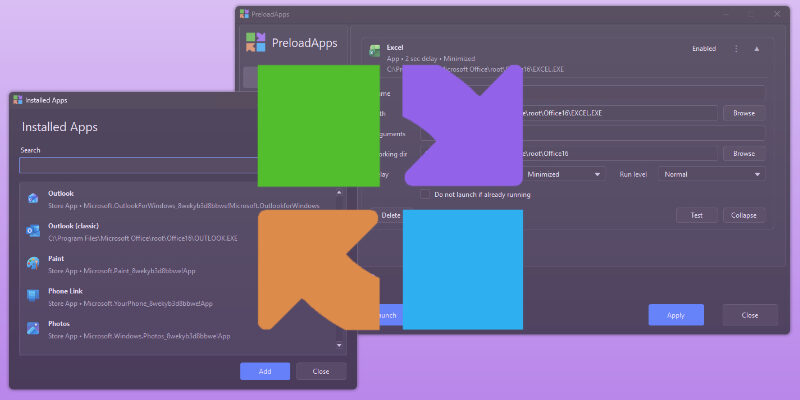
For users who want an easier way to open apps, folders, and websites after Windows startup, PreloadApps provides a simple startup launch manager.
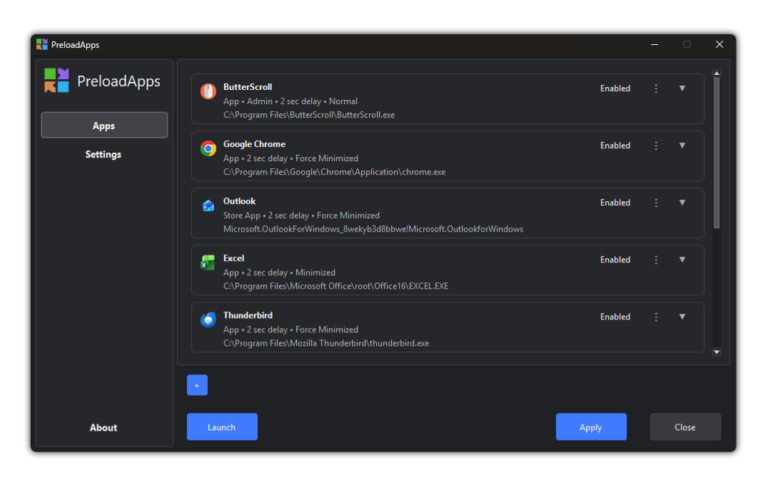
PreloadApps lets you create a launch list for the items you use every day.
You can add:
Apps installed on your computer
Apps selected manually using Browse
Folders
Websites
After adding items, you can choose the order in which they open and set small delays between them.
What You Can Do With PreloadApps
PreloadApps is designed to be simple for daily use while still giving useful control.
You can:
Add apps, folders, and websites
Open everything after Windows startup
Launch your saved list manually anytime
Set delays between items
Reorder items
Enable or disable items without deleting them
Open apps normally or minimized where supported
Keep PreloadApps in the system tray
Check for updates from the app
Activate a lifetime license after purchase
This makes it easier to prepare your Windows workspace without managing startup shortcuts manually.
Launch Modes
PreloadApps includes launch mode options for supported items.
Normal opens the item normally.
Minimized asks Windows to open the item minimized.
Force Minimized makes a stronger attempt to minimize the window after it starts.
Minimized behavior depends on how each app is built. Some apps support it properly, while others may still open normally because of splash screens, launchers, helper processes, update windows, or custom startup behavior.
For most users, Normal mode is the best choice. Minimized and Force Minimized can be used when you want certain apps to open quietly in the background.
Better Control Without Complication
The main benefit of PreloadApps is control.
Instead of relying only on Windows Startup settings or manually creating shortcuts, you can manage your daily startup list from one place.
You can add what you need, remove what you do not need, and change the launch order anytime.
This is useful for people who start their day with the same set of tools, websites, and folders.
Final Thoughts
Opening the same apps, folders, and websites every day can become repetitive.
Windows includes basic startup options, but they may not offer enough flexibility for users who want a cleaner and more organized startup routine.
A simple startup launcher like PreloadApps can help prepare your workspace automatically after Windows starts.
For users who want to save a few clicks every day and keep their startup routine organized, PreloadApps provides a simple and practical solution.